How to use MultiStream OBS

Follow these steps to set up and control your multistream.
1

Install the plugin

Close OBS Studio, run the installer and follow the steps. When you open OBS you'll see the Multiple Output panel in the docks.

2

Add your platforms

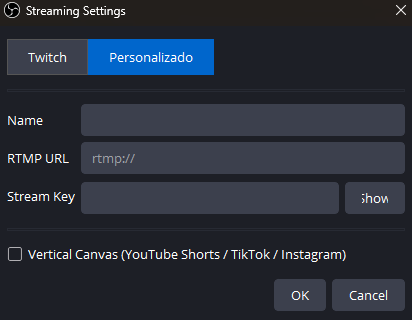
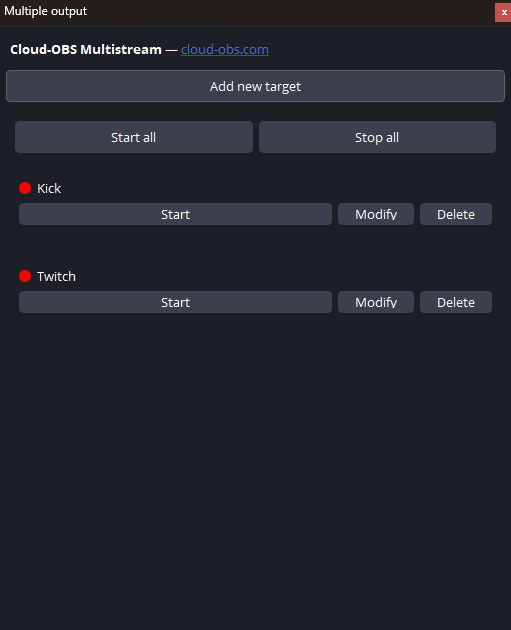
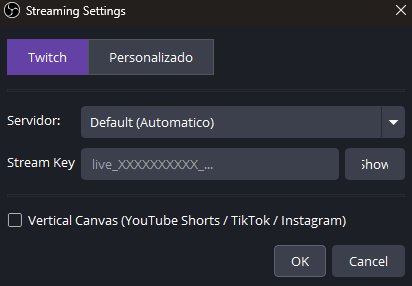
In the Multiple Output panel, click Add new target. Choose Twitch and enter your stream key, or select "Custom" for Kick or any other RTMP server.

Set up Twitch in OBS multistream Twitch
Set up Kick RTMP in OBS multistream Kick / Custom RTMP
3

Start all platforms at once

Press Start All in the panel and all your outputs go live simultaneously alongside OBS's main stream.

Multi-Output panel with Start All in OBS Multiple Output panel with Kick and Twitch active
4

Control from chat or OBS Blade

Type !start or !stop in your Twitch or Kick chat to start or stop all outputs without touching your PC. You can also control it from OBS Blade on your phone.

📱 GIF / Screenshot — Chat control and OBS Blade
5

Vertical canvas for Shorts and TikTok

In OBS go to Docks → Vertical Canvas Preview. Choose the scene you want to use as a vertical output. Perfect for streaming in portrait mode to YouTube Shorts, TikTok or Instagram in parallel.

Ready to go live?

Get it for €4.99 →