Before diving in, it's worth knowing there are two main approaches:
Recommended
OBS multistream plugin
Runs entirely on your machine. Sends the stream directly from your PC to each platform. No latency overhead, no monthly fee, no external dependency.
Not recommended
Cloud restreaming service
Your stream goes to their servers first, then re-broadcasted. Adds latency, costs $15–$20/month, and if the service goes down, so does your stream. See the full Restream alternative comparison or, if you already use obs-multi-rtmp, what changes.
1
Install the plugin in OBS Studio
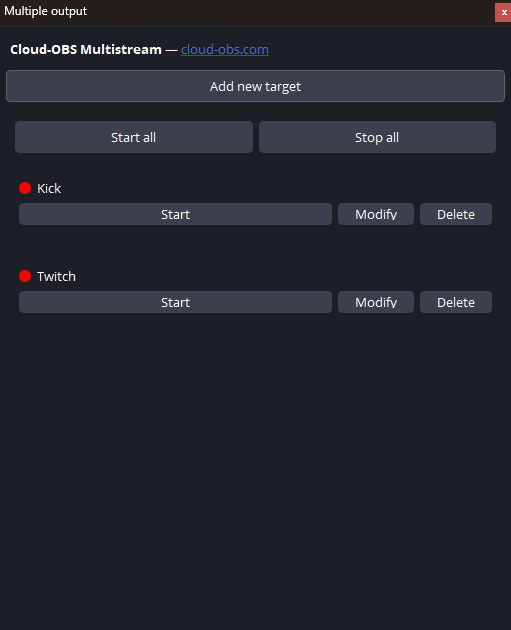
Get the MultiStream OBS plugin, then close OBS Studio completely. Run the installer — it takes less than a minute. When you reopen OBS, the Multiple Output panel will appear automatically in your docks. No manual configuration needed.
2
Add your streaming platforms
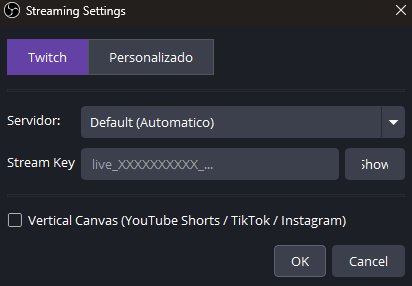
In the Multiple Output panel, click Add new target. For Twitch, select it from the list and paste your stream key from your Twitch dashboard. For Kick or YouTube, choose Custom RTMP and enter the server URL and stream key from their settings pages. Platform-by-platform keys and bitrates: streaming to Twitch, YouTube and Kick at the same time.
3
Start all outputs at once
Click Start All in the panel. Every platform goes live simultaneously, alongside OBS's main stream. Each output streams independently — you can stop one without affecting the others.
4
Optional: control from chat or your phone
Type !start or !stop in your Twitch or Kick chat to control all outputs remotely. You can also start/stop everything from your phone using the OBS Blade app.
When you multistream, your audience is split across platforms. The Multi-Chat dock merges Twitch, YouTube, Kick, TikTok and X into one panel, and one click puts that combined chat on screen as an OBS browser source — see the multi-chat overlay guide. It uses the platforms you already connected, so there is no second service to sign up to.
5
Add a vertical canvas for Shorts and TikTok (optional)
Go to Docks → Vertical Canvas Preview. Choose a portrait-format scene and it will stream to a separate output in 9:16 — perfect for YouTube Shorts, TikTok Live or Instagram Live running at the same time as your main horizontal stream. More detail in the vertical multistream guide.
Requirements
The plugin works on Windows with OBS Studio 29+. Your upload bandwidth needs to be sufficient to send multiple streams — as a rough guide, two 1080p60 streams at 6000 Kbps each means you need at least ~15 Mbps upload.
The Multiple Output panel does not appear after installing. OBS only loads plugins at startup, and the installer cannot patch a running instance. Close OBS completely — check the system tray, it often keeps running there — and open it again. If it is still missing, look in Docks in the top menu, as the panel may be open but hidden behind another dock.
One platform drops frames while the others are fine. That output's bitrate is too high for the upload you have left, or that platform's ingest server is far from you. Lower that specific output's bitrate first. Dropped frames on every output at once means the problem is your total upload, not any single platform.
YouTube rejects the connection. Live streaming has to be enabled on the channel before it accepts a stream, and after enabling it YouTube imposes a 24-hour wait on new channels. Also make sure you are using the key for the right stream: YouTube gives a persistent key and per-broadcast keys, and they are not interchangeable.
Kick or another custom RTMP target does nothing. The server URL and the key are separate fields. If the whole string was pasted into one of them it will fail silently. The server URL starts with rtmp:// or rtmps://; the key is the part after it.
Outputs do not start with the OBS Start button. Auto-start is per target. Open each one and check that it is set to start with the stream, or press Start All in the panel instead.
Chat commands are ignored.!start and !stop only work from the accounts you authorised, and only on Twitch and Kick. They will not work from YouTube or TikTok chat.
Still stuck? Write to cloud_obs_com@gmail.com and say which platform fails and what OBS's log shows.
Common questions about multistreaming with OBS
Can OBS multistream natively?
No. OBS Studio sends one stream to one destination at a time — there is no built-in option to stream to multiple platforms at once. You need a plugin that adds extra RTMP outputs, or a cloud restreaming service.
Can you multistream on OBS to Twitch and YouTube at the same time?
Yes, with the MultiStream OBS plugin. Each platform gets its own RTMP output and they all start when you press Start Streaming. Twitch, YouTube, Kick and any other RTMP server can run simultaneously from the same OBS instance.
How many platforms can I stream to at once?
There is no limit in the plugin — you can add as many RTMP targets as you want. The real limit is your upload bandwidth and CPU. Most people run two or three platforms comfortably.
How much upload speed do I need to multi stream?
Multiply your bitrate by the number of outputs, then leave headroom. Three 1080p60 streams at 6000 Kbps each need roughly 18 Mbps of raw upload, so aim for 25 Mbps to be safe. If you are short on bandwidth, lower the bitrate on the secondary outputs.
Does streaming to multiple platforms hurt performance?
Encoding is done once and the encoded frames are reused for every output, so adding a second or third platform costs very little CPU. The cost is bandwidth, not processing power.
How do I multistream on OBS without a plugin?
The only alternative is a cloud restreaming service: you send one stream to their servers and they re-broadcast it. It works, but it adds latency, costs a monthly fee, and your whole stream depends on their uptime. Streaming to multiple platforms directly from OBS avoids all three.
Start multistreaming today
One-time payment. No subscription. Works on Windows with OBS Studio.